

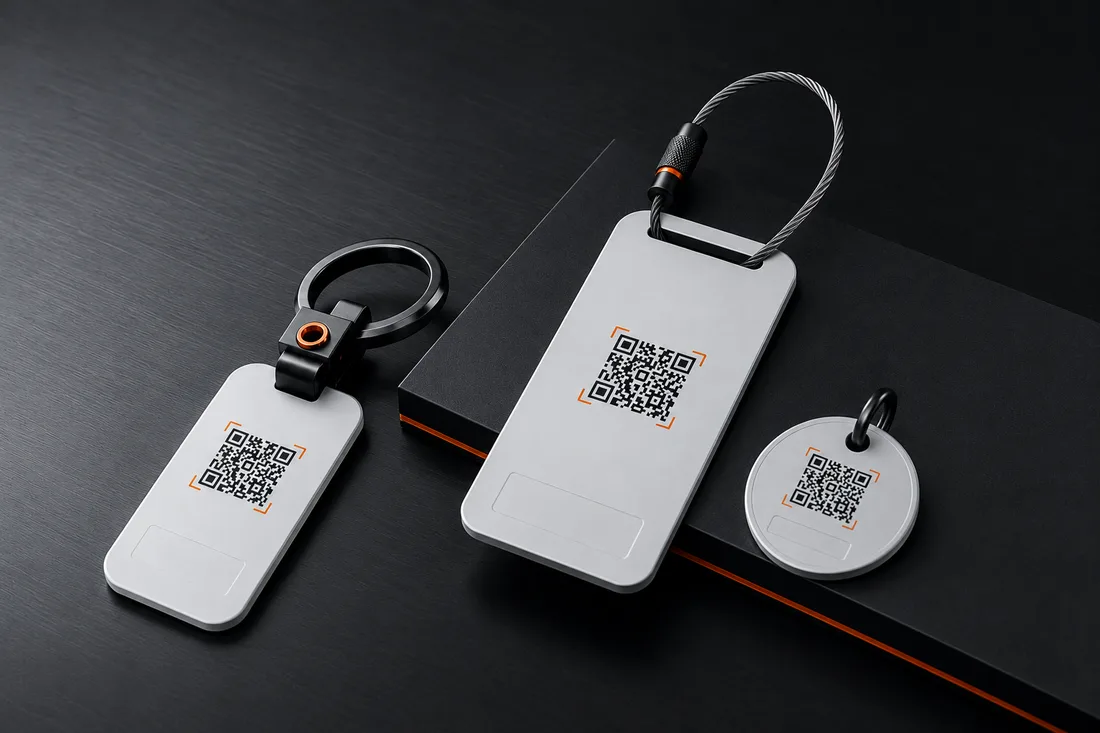
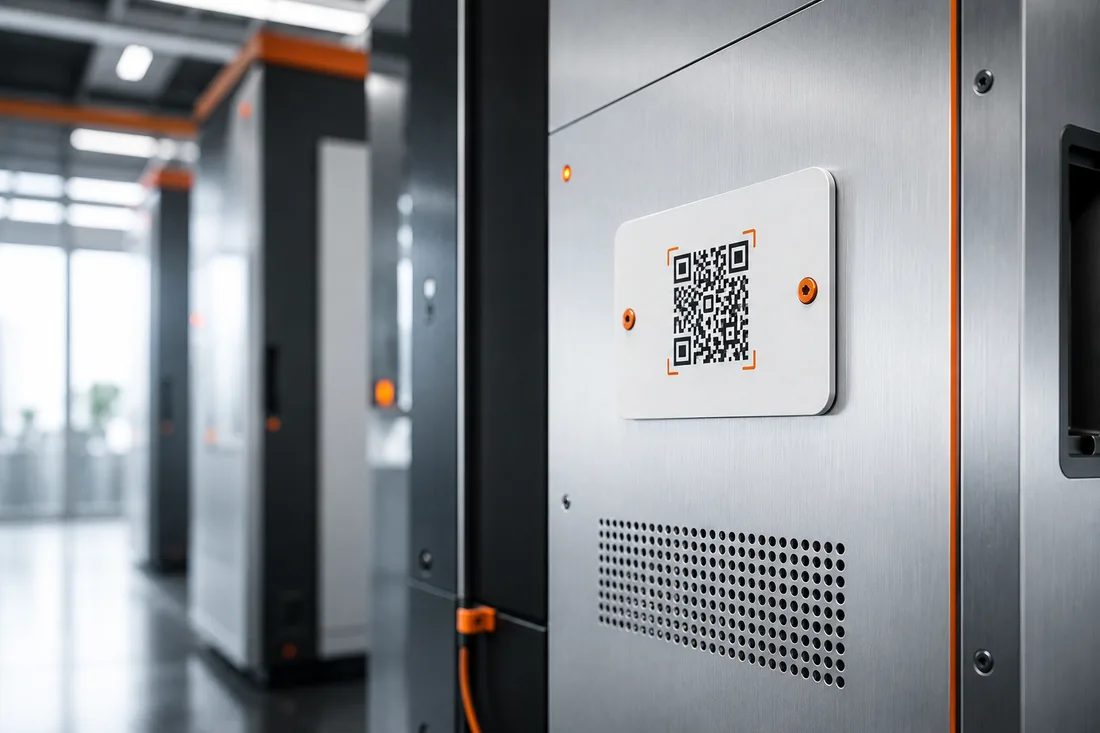

01 Café & hospitality
Guests connect themselves
As a table stand or a notice. Your team never has to look up the password again — one sign per table, done.
Ships from Germany · 1–2 business days
Free · No sign-up · Instant PDF
Enter your network name and password — and you've got a designed sign with a QR code to hang up or stand on a table. Guests point their camera at it and they're connected, without typing a password. And because the code is created right in your browser, your password isn't sent anywhere.
Step 1 · Wi-Fi access
Step 2 · Labels (optional)
Preview · add a network name
Runs entirely in your browser — your entries are never uploaded.
100% local · Your password never leaves the browser
How it works
Step 01
Enter the network name (SSID) and password — exactly as they appear on your router. The encryption is set to WPA/WPA2 on almost all routers and is already preselected.
Step 02
Optionally add a heading and the name of your café, practice or holiday rental. Then save it as a PDF (A4) or image — the sign is print-ready instantly.
Step 03
Print it and put it where guests will see it: on the wall, in a frame on the table, in the guest folder. Camera on it — connected.
Works with iPhone and Android — directly through the camera app, no extra app
When the Wi-Fi sign is worth it
01 Café & hospitality
As a table stand or a notice. Your team never has to look up the password again — one sign per table, done.
02 Practice & office
A sign in the waiting area, and patients or visitors are online without having to ask. Meant for the guest network, not for the internal company Wi-Fi.
03 Holiday rental
In the guest folder or on the fridge. Your guests are online before the first message reaches you.
Questions & answers
Enter your network name and password, optionally add a heading, then download it as a PDF and print it. Guests scan the QR code with their camera and are automatically connected to the Wi-Fi.
Yes, completely. No account, no subscription, no watermark and no limit — as many signs as you need.
Yes. iPhones (from iOS 11) and practically all Android devices recognize Wi-Fi QR codes directly through the camera app — no extra app needed.
The password is contained in the QR code (and optionally as text on the sign) — whoever sees it can connect. So only put the sign up where your password is allowed to be: it's ideal for guest Wi-Fi networks, but not for your company's main network. Important: this generator doesn't transmit your password; it stays in your browser.
Handy for guests whose camera doesn't read the code for once. You can turn the text display on or off with a checkbox — the QR code alone is enough for most devices.
A PDF in A4 format that you can also print scaled down to A5 or A6 — plus a PNG download. The QR code is built with high error correction so it scans reliably even at small sizes.
For businesses with multiple locations
For holiday rentals, hospitality and service points there's the ServiceID: a scannable contact point that connects guests and customers with you directly — with your logo, entirely without an app. The world is full of honest people. We make it easy for them.
Privacy
We’d like to understand how our site is used and steer our advertising sensibly. Essential functions work without any tracking. Details in the privacy policy.